
View
PUBLISHED
The View class is the base class for all views. With this class you can manage the background color and images for UI components.
In this tutorial, the following subjects are covered:
View events
The following table lists the basic event provided by the View class:
Table: View events
| Input signal | Description |
|---|---|
AddedToWindow |
Emitted after the view has been connected to the window. |
FocusGained |
Emitted when the control gets the key input focus. |
FocusLost |
Emitted when the control loses key input focus. |
HoverEvent |
Emitted when the hover input is received. |
KeyEvent |
Emitted when the key event is received. |
LayoutDirectionChanged |
Emitted when the layout direction property of this or a parent view is changed. |
Relayout |
Emitted after the size has been set on the view during relayout. |
RemovedFromWindow |
Emitted after the view has been disconnected from the window. |
ResourcesLoaded |
Emitted after all resources required by a view are loaded and ready. |
TouchEvent |
Emitted when the touch input is received. |
VisibilityChanged |
Emitted when the visible property of this or a parent view is changed. |
WheelEvent |
Emitted when the wheel event is received. |
Setting the Background Color
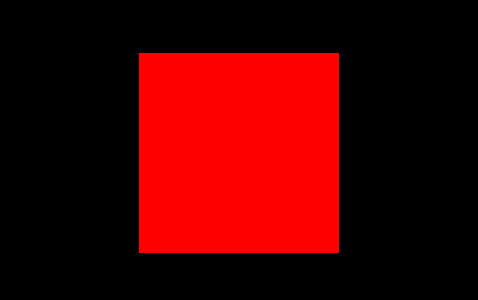
You can set a background color for a UI component. To set a red background for a component:
View view = new View();
view.Size2D = new Size2D(200, 200);
view.BackgroundColor = Color.Red;
Figure: View with a red background
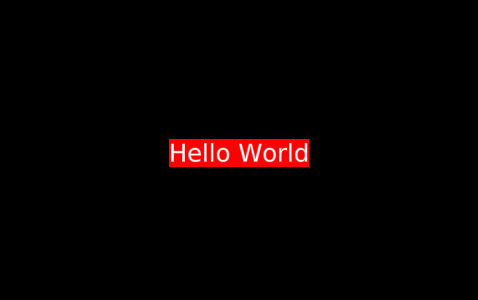
You can handle all existing views similarly. For example, to set the background color for a TextLabel:
TextLabel label = new TextLabel( "Hello World" );
label.BackgroundColor = Color.Red;
Figure: TextLabel object with a red background
Setting the Background Image
You can set a background image of a view:
View view = new View();
view.BackgroundImage = "image.png";
Figure: View with a background image
Was this document helpful?
We value your feedback. Please let us know what you think.